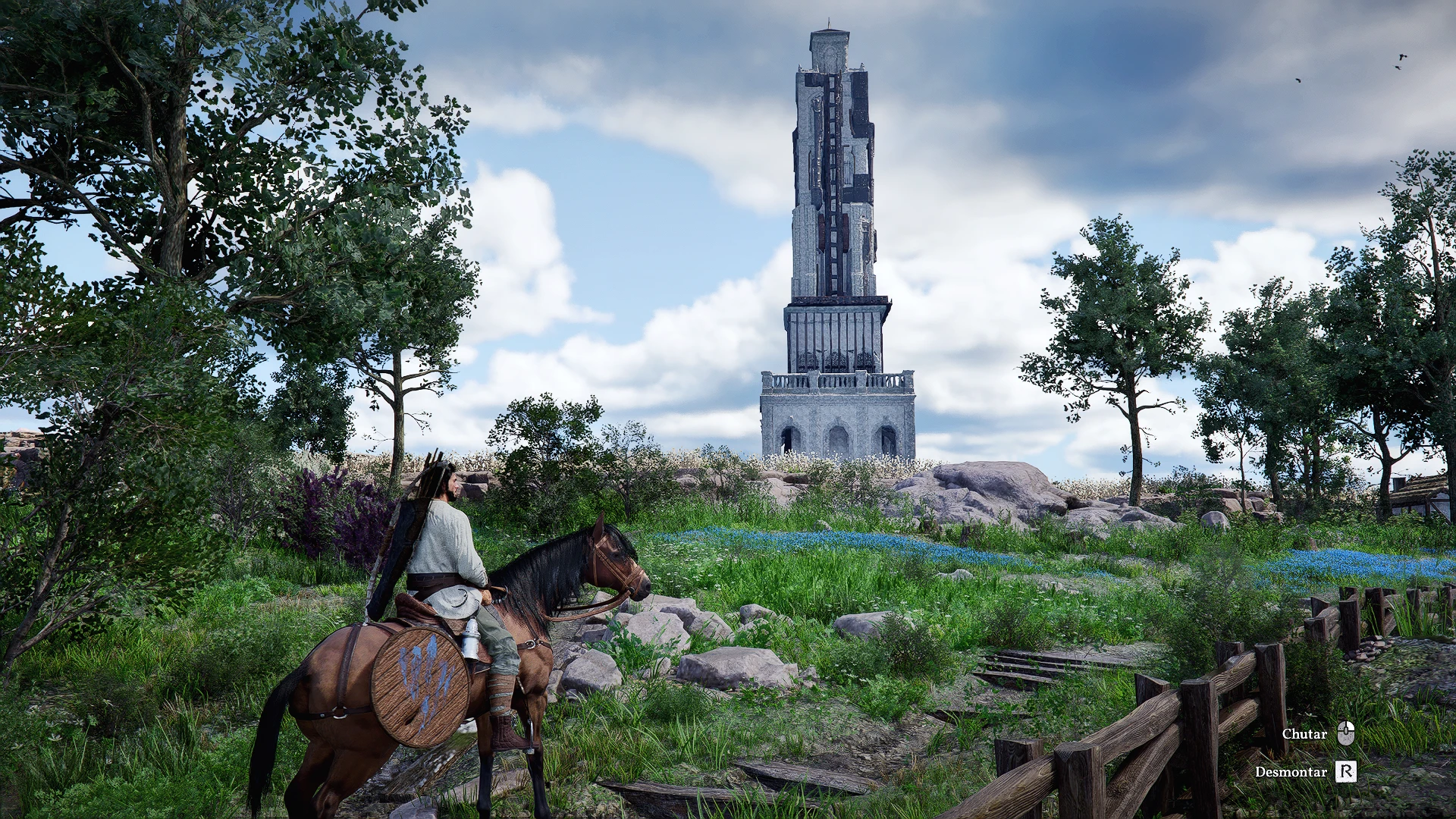
Crimson Desert Photorealistic Reshade
Experience the atmosphere of Crimson Desert at its best with this photorealistic ReShade.
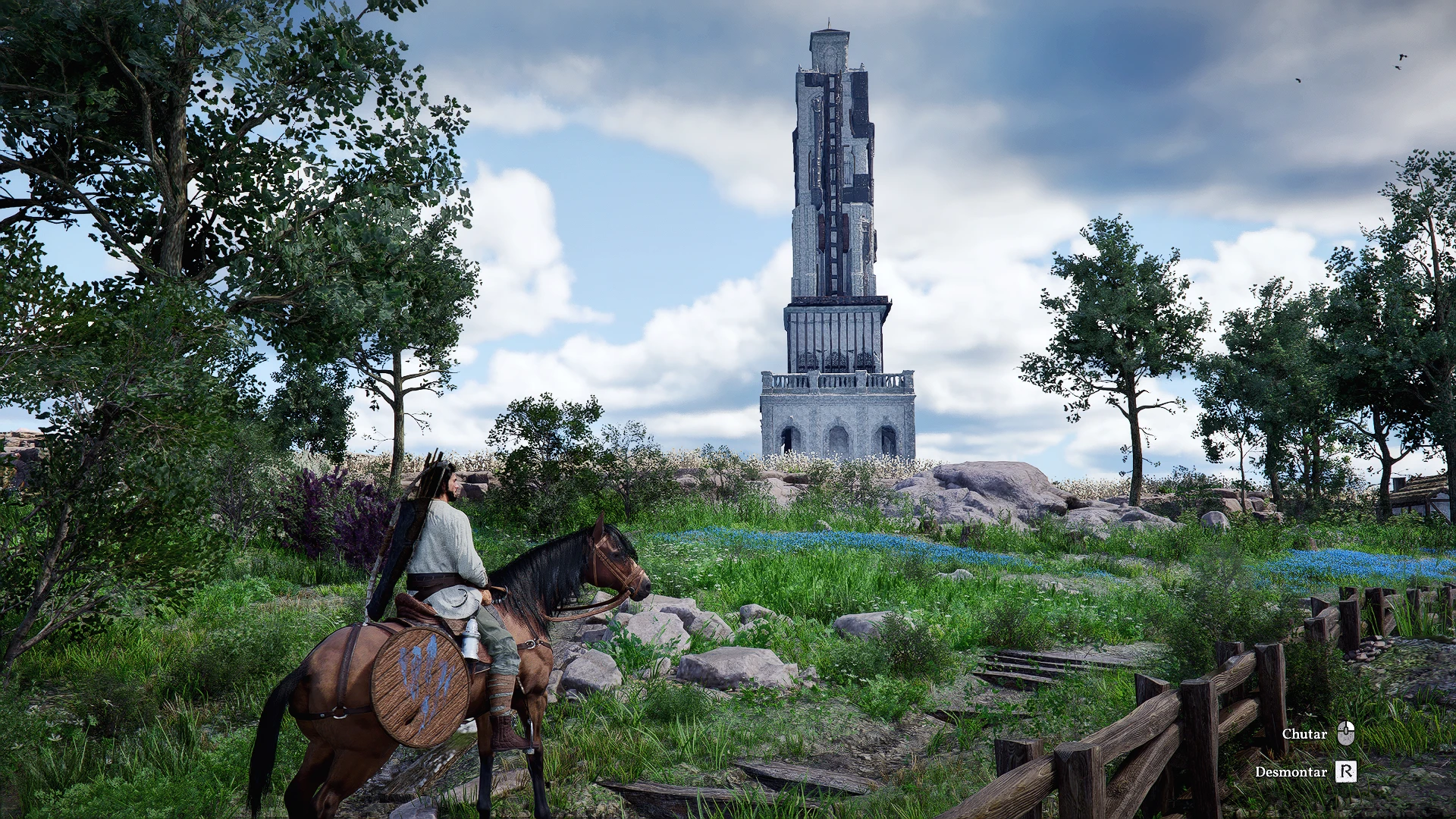 查看大图
查看大图[b][color=#00ff00][size=5][youtube]QtH-ZMEcjUY[/youtube][/size][/color][/b]
[b][color=#00ff00][size=5]Installation Instructions[/size][/color][/b]
[size=4][b]1 - Download Reshade[/b][/size]
[list]
[][size=4]Go to the official ReShade website and download the latest installer: [color=#00ff00]https://reshade.me/[/color][/size][/]
[/list][size=4][b]2 - Install ReShade into Crimson Desert[/b][/size]
[list]
[][size=4]Run the installer and select the game’s executable CrimsonDesert.exe[/size][/]
[][size=4]Choose DirectX 10/11/12 as the rendering API.[/size][/]
[][size=4]When prompted, select all optional effects (this is mandatory for the preset to work correctly).[/size][/]
[][size=4]Disable HDR within the game so that reshade works as expected.[/size][/]
[][size=4]If any effects appear in red (error) in ReShade after installation, this is normal and will not affect my ReShade or your game, as they are not used.[/size][/]
[/list][size=4][b]3 - Place the Preset File[/b][/size]
[list]
[][size=4]Copy the preset file .ini into the main game folder where CrimsonDesert.exe is located.[/size][/]
[/list][size=4][b]4 - Launch the Game[/b][/size]
[list]
[][size=4]Start Crimson Desert.[/size][/]
[][size=4]Press [color=#00ff00]Home[/color] (default ReShade menu key).[/size][/]
[][size=4]In the drop‑down menu, select the preset file you placed in the game folder.[/size][/]
[/list][size=4][b]5 - Enjoy the Visual Upgrade[/b][/size]
[list]
[][size=4]You can toggle the ReShade menu on/off with the Home key, or customize the effects further if desired.[/size][/]
[][size=4]If you want to enable and disable ReShade effects, you can configure a key on your keyboard. Navigate to the Settings tab in the ReShade overlay, look for the option labeled 'Toggle Effects' or 'Effect Toggle Key', and choose a key that will enable or disable ReShade instantly.[/size][/]
[/list]
正在加载版本记录…
正在加载评论…
评论在新手盒子客户端中发表,这里同步展示。