
Discord 集成 (DI)
添加Discord与Minecraft之间的聊天链接,以及用于请求服务器数据的Discord命令。
 查看大图
查看大图
版本 4.X.X
有关该模组的旧版本,请查看wiki。
此模组将 Minecraft 聊天与 Discord 聊天连接起来。
该模组为模组 Dimension Access Manager(CurseForge 或 Modrinth)和 More MobGriefing Options(CurseForge 或 Modrinth)添加了 Discord 命令集成。
该模组仅在服务端运行,在客户端无法运行。
需要服务器与朋友一起玩?不知道如何搭建?直接租用已配置好的服务器吧!

点击上方图片,选择一个套餐(建议至少 6 GB),
使用我的优惠码 agent 即可享受首月 25% 折扣,与朋友一起愉快游玩!
重要提示
- 分享安装了 Discord Integration 的服务器世界时,请记得删除 "serverconfig" 文件夹中的 "discordintegration-server.toml" 文件,以保护你的机器人令牌。
- 你可以在 Discord 开发者网站 的 "Bot 选项卡" 中重新生成机器人令牌。
支持
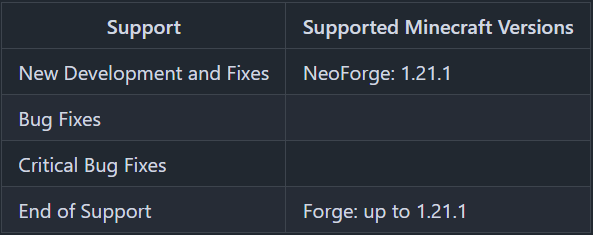
未发布该模组的 Minecraft 版本不受支持。
你可以在此查看文本版本。
功能
聊天
Minecraft > Discord
Minecraft 聊天中输入的所有内容都会由 Discord 机器人添加到 Discord 聊天中。
额外的死亡消息、进度消息也会发送到 Discord。
"say" 和 "me" 命令已被修改,它们的消息也会发送到 Discord。
服务器启动和服务器停止消息可在配置中自定义。
Discord > Minecraft
除机器人外的每条消息都会发送到 Minecraft 聊天中。
如果在配置中启用,机器人消息也可以发送到 Minecraft 聊天中。
从 Discord 传输到 Minecraft 的消息最大长度可配置,以防止刷屏。如果消息过长,会在 Discord 聊天中显示错误消息。
为命令的消息也不会发送到 Minecraft 聊天中。
Discord Integration 添加了默认命令,可在配置中添加自定义命令。命令前缀也可在配置中配置。
管理
Discord Integration 的 "管理" 部分由两部分组成:管理频道和管理角色。
在管理频道中,可以使用所有 Discord Integration 命令。此外,还会显示服务器启动、停止和崩溃、玩家加入和离开的消息。如果启用了白名单功能,当 Minecraft 和 Discord 账号被关联或解除关联,以及 Minecraft 账号被添加到白名单或从白名单中移除时,还会显示额外消息。
此外,管理频道可用于 Minecraft 服务器的管理员和版主之间的对话,这些对话不会显示在 Minecraft 聊天中。
通过管理角色,可以执行标记为管理命令的命令。
白名单
通过 Discord Integration 使用的白名单需要在 server.properties 文件中激活白名单。它有两种保护白名单的机制:角色和单链接管理,将在以下部分中描述。离开 Discord 服务器的用户的关联将自动移除。如果关联不同步,例如因为 Minecraft 服务器离线或 Discord API 出现问题,可以通过重启服务器来解决,重启会重新同步关联。
配置键 "whitelist.use_role" 用于设置角色机制是否启用,配置键 "whitelist.use_single_linking_management" 用于设置单链接管理是否启用。
要创建关联,用户可以在聊天频道中使用 !link 和 !unlink 命令。重要:必须先配置中启用 !link 和 !unlink 命令,然后才能使用它们。
仅关联
如果两个机制都禁用,用户只需创建关联即可进入白名单。
角色
如果角色机制启用,用户必须拥有配置键 "whitelist.role_id" 中设置的角色 ID。该角色必须由 Discord 服务器的版主分配。如果使用 "@everyone" 角色,用户只需创建关联即可进入白名单。
单链接管理
对于单链接管理,必须设置两个配置值。"whitelist.linking_management_channel_id" 必须设置为显示 "关联消息" 的频道 ID。"whitelist.single_linking_management_role_id" 是激活或停用关联所需角色的角色 ID。只需点击消息下方的对勾或 "X" 反应即可激活或停用关联。
启动时,链接管理频道中的所有关联消息都会更新,由于 Discord API 限制,每条消息大约需要 1 秒。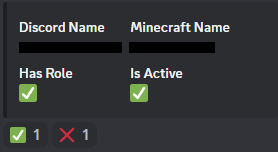
角色 + 单链接管理
Discord 用户必须拥有配置变量 "whitelist.role_id" 中设置的角色 ID,并且链接必须在链接管理频道中激活(详情见上一节)。
Minecraft 命令
/discord commands- 显示 Discord Integration 中配置的可用命令列表,并附带帮助消息说明它们的作用。/discord gamerules- 显示所有 Minecraft 游戏规则的值。/discord mods- 显示服务器中所有模组的列表。/discord link <player> [<discordMemberId>]- 创建 Discord 用户与 Minecraft 玩家之间的关联。在 Discord 聊天中只能使用仅带玩家的变体,在 Minecraft 中只能使用带玩家和 discordMemberId 的命令(仅限权限等级 3 或更高的玩家)。/discord unlink <player> [<discordMemberId>]- 删除 Discord 用户与 Minecraft 玩家之间的关联。在 Discord 聊天中只能使用仅带玩家的变体,在 Minecraft 中只能使用带玩家和 discordMemberId 的命令(仅限权限等级 3 或更高的玩家)。
默认 Discord 命令
如果在 Discord 聊天中输入以下命令,你将获得来自 Minecraft 服务器的信息。
可在配置中添加自定义命令。
原版 Minecraft 命令
!difficulty- 显示服务器的难度。!gamerules- 显示游戏规则及其值。!help- 显示所有命令及其描述。!link <Minecraft player name>- 将 Minecraft 玩家与使用此命令的 Discord 用户关联。!mods- 显示服务器上的模组列表。!online- 显示服务器上有多少玩家以及哪些玩家。!seed- 显示当前世界的种子。!time- 显示服务器上的当前白天时间。!tps- 显示服务器及其维度的 tps 统计信息。!unlink <Minecraft player name>- 将 Minecraft 玩家与使用此命令的 Discord 用户解除关联。
Dimension Access Manager 模组的命令
!dimensions- 显示所有维度的访问状态。
More MobGriefing Options 模组的命令
!mobgriefing- 显示所有生物的生物破坏选项。
服务器配置
配置文件位于 "world" 文件夹中的 "serverconfig" 文件夹中,名为 "discordintegration-server.toml"。世界文件夹的名称在 "server.properties" 文件中为服务器设置。
- bot - 通用机器人配置
- active - Discord Integration 是否应启用?默认:false
- bot_token - 你的 Discord 机器人令牌。默认:"INSERT BOT TOKEN HERE"
- guild_id - Discord 服务器的公会/服务器 ID,Discord Integration 应在此运行。
- discord_presence - Discord 状态配置
- show_discord_presence - 是否显示 Discord 状态消息?默认:false
- message - 在 Discord 状态中显示的消息(活动始终为 playing)。(可用参数:%online_player_count% = 在线玩家数,%max_player_count% = 最大玩家数)默认:"Minecraft with %online_player_count% players"
- chat - 聊天频道设置
- enabled - 是否应连接 Minecraft 和 Discord 聊天?默认:false
- channel_id - 连接 Minecraft 和 Discord 聊天的频道 ID。
- use_raw_message_format_discord_to_minecraft - 对 Discord 到 Minecraft 的消息使用原始消息格式(示例:https://minecraft.fandom.com/wiki/Commands/tellraw#Examples)?默认:false
- invalid_raw_message_format_for_discord_to_minecraft_error_message - 当原始消息格式为无效 JSON 时,在 Discord 中显示的错误消息。(可用参数:%username% = Discord 用户名,%nickname% = Discord 昵称,%error_message% = 错误消息,%new_line% = 换行)默认:"%username%%new_line%Error: Invalid JSON format for raw message for Discord to Minecraft message.%new_line%%error_message%"
- message_format_discord_to_minecraft - Discord 到 Minecraft 消息的消息格式。(可用参数:%username% = Discord 用户名,%nickname% = Discord 昵称,%message% = 消息)默认:"[%username%] %message%"
- message_format_minecraft_to_discord - Minecraft 到 Discord 消息的消息格式。(可用参数:%player% = 玩家名称,%message% = 消息)默认:"%player% %message%"
- message_format_minecraft_to_discord_me_message - Minecraft 的 /me 命令到 Discord 消息的消息格式。(可用参数:%player% = 玩家名称,%message% = 消息)默认:"%player% %message%"
- max_char_count - 发送到 Minecraft 聊天的 Discord 消息最多应有多长?如果值为 -1,则长度无限制。默认:-1
- max_char_count_error_message - 当消息过长时,在 Discord 中显示的错误消息。(可用参数:%username% = Discord 用户名,%nickname% = Discord 昵称,%max_char_count% = 最大消息长度(chat.max_char_count 的值),%actual_message_char_count% = 发送消息的实际长度,%new_line% = 换行)默认:"%username%%new_line%Error: Message too long.%new_line%Messages can only be up to %max_char_count% characters long.%new_line%Your message is %actual_message_char_count% characters long."
- transmit_bot_messages - 其他机器人的消息是否应发送到 Minecraft 聊天?默认:false
- suppress_server_messages - 是否抑制从 Minecraft 服务器发送的消息(例如使用 say 命令)?默认:false
- messages - 在 Discord 聊天频道中显示的消息
- server_started - 服务器启动消息的选项(enabled: true, message: "Server started")
- server_stopped - 服务器停止消息的选项(enabled: true, message: "Server stopped")
- server_crashed - 服务器崩溃消息的选项(enabled: true, message: "Server crashed")
- player_joined - 玩家加入消息的选项(enabled: true, message 包含 %player%)
- player_left - 玩家离开消息的选项(enabled: true, message 包含 %player%)
- player_died - 玩家死亡消息的选项(enabled: true, message 包含 %player%、%default_message%)
- tamed_mob_died - 驯服生物死亡消息的选项(enabled: true, message 包含 %tamed_mob%、%default_message%)
- player_got_advancement - 玩家获得进度消息的选项(enabled: true, message 包含 %player%、%advancement_title%、%advancement_description%、%new_line%)
- management - 管理频道设置
- enabled - 是否应使用管理频道?默认:false
- channel_id - 管理频道应所在的频道 ID。
- role_id - Discord 用户执行管理命令所需的角色 ID
- messages - 在 Discord 管理频道中显示的消息(server_started、server_stopped、server_crashed、player_joined、player_left、linking_created、linking_removed、whitelist_update_with_forced_message_update_start、whitelist_update_with_forced_message_update_finished、player_whitelist_added、player_whitelist_removed)
- whitelist - Discord 中白名单管理的设置
- enabled - 是否应启用 Discord 中的白名单管理?默认:false
- use_role - 用户是否必须拥有特定角色才能被列入白名单?默认:true
- role_id - 用户必须拥有的 Discord 角色 ID 才能被列入白名单。
- use_single_linking_management - 每个关联是否必须单独激活,然后 Minecraft 账号才会被列入白名单?默认:true
- single_linking_management_role_id - 用户激活或停用关联所需 Discord 角色的角色 ID。仅在 whitelist.use_single_linking_management 为 true 时需要
- linking_management_channel_id - 处理关联激活的频道 ID。
- command_settings - 命令设置
- command_prefix - Discord 命令的命令前缀。默认:"!"
- command_normal_user_permission_level - 没有管理角色的用户的 Minecraft 命令权限等级。默认:2
- command_management_user_permission_level - 拥有管理角色的用户的 Minecraft 命令权限等级。默认:4
- other_bots_command_prefixes - 其他机器人的命令前缀。带有这些前缀的消息不会发送到 Minecraft 聊天。
- messages - 命令消息设置(only_management_command_hint_message、link_created_result_message、link_already_exists_result_message、link_removed_result_message、link_invalid_discord_member_id_error_message、unknown_command_error_message、invalid_permissions_error_message)
- commands - 从 Discord 到 Minecraft 命令的命令映射(minecraft_command、discord_command、management_command、use_parameters、description、enabled)
如何设置 Discord 机器人并获取机器人令牌
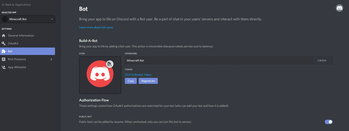
首先,你需要登录 Discord 开发者网站。
点击 "New Application" 并为你的应用程序输入名称。
转到 "Bot 选项卡" 并点击 "Add Bot"。
点击 "Click to Reveal Token" 获取配置所需的机器人令牌。
要将机器人添加到服务器,请点击 "General Information" 并将 "Client ID" 添加到以下链接中:
https://discordapp.com/oauth2/authorize?client_id=YOUR_BOTS_CLIENT_ID&scope=bot&permissions=75840
你必须将 YOUR_BOTS_CLIENT_ID 替换为你的机器人的客户端 ID。
打开此链接并将机器人添加到你的某个服务器。
你只能将机器人添加到自己的服务器。如果你想将机器人添加到你不拥有的服务器,你必须在 Bot 选项卡中勾选 "Public Bot" 选项,并让服务器所有者将机器人添加到他的 Discord 服务器。
如何获取公会 ID
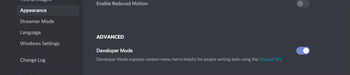
要获取公会 ID,你需要在 Discord 中进入 "用户设置" > "外观" 并激活 "开发者模式"
接下来,转到机器人应运行的服务器。
右键点击该服务器名称或图标,点击 "复制服务器 ID" 并将其粘贴到配置中。
如何获取频道 ID
要获取频道 ID,你需要在 Discord 中进入 "用户设置" > "外观" 并激活 "开发者模式"
接下来,转到机器人应运行的服务器和频道。
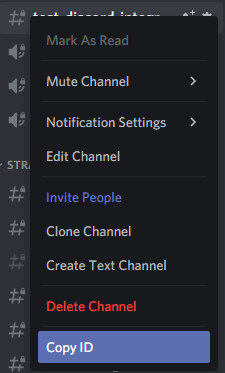
右键点击该频道,点击 "复制 ID" 并将其粘贴到配置中。
如何获取角色 ID
要获取角色 ID,你需要在 Discord 中进入 "用户设置" > "外观" 并激活 "开发者模式"
接下来,转到服务器中的 "服务器设置" > "角色"。
右键点击该角色,点击 "复制角色 ID" 并将其粘贴到配置中。
感谢 Muse31 提供的徽标。
你可以在非商业整合包中使用此模组,无需询问。
你可以在 CurseForge 和 Modrinth 上找到我更多的模组。

正在加载版本记录…
正在加载评论…
评论在新手盒子客户端中发表,这里同步展示。