Colors Arise Reshade preset
A reshade preset that brings back colors in the world of Dragon's Dogma. Works with the new update!
 查看大图
查看大图[size=4][b]Description[/b][/size]
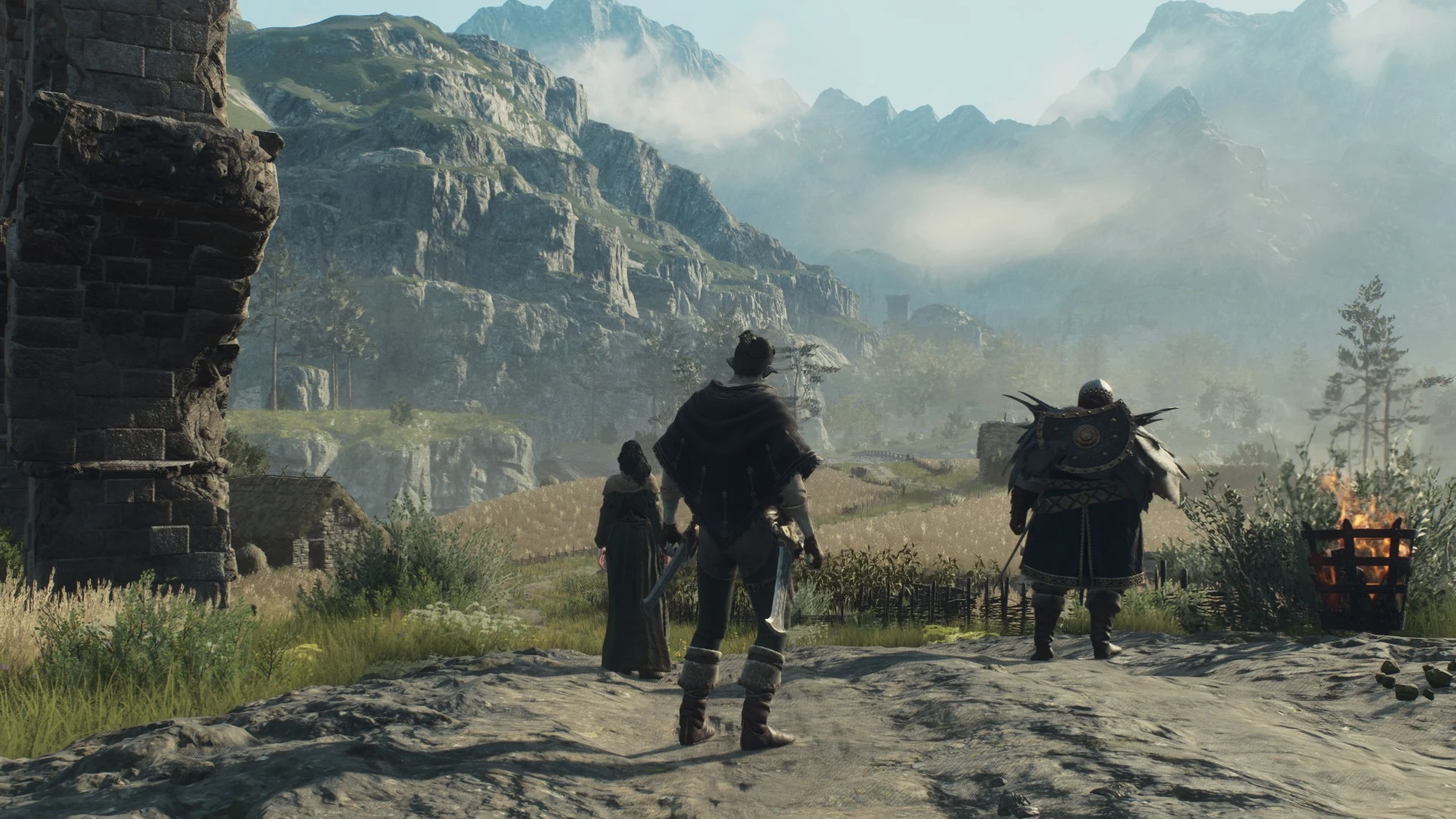
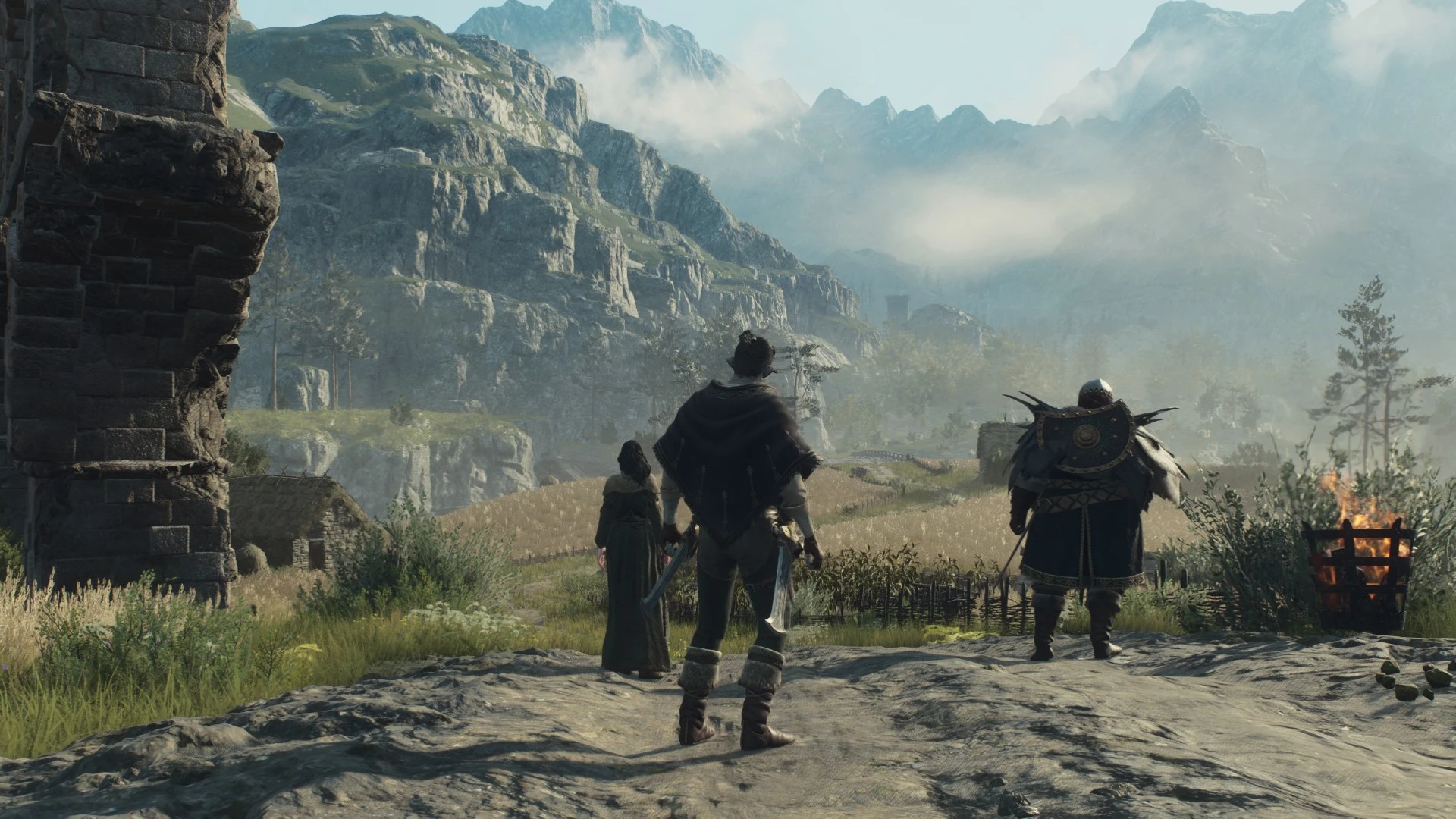
[color=#d4d4d8]From the moment I started playing Dragon's Dogma 2 I thought something looked wrong. As I explored more and more, it became obvious that the game felt depressing and monotonous, for example it is very hard to tell the wheat fields apart from the grass that surround them. Everything feels too "uniformized", with no colors popping in to distinguish one thing from the other. This reshade uses simple techniques to make colors pop in more without assaulting your eyes with too much saturation. I have also removed that sort of foggy washed-out filter and now the game feels much clearer to look at. [/color]
[color=#d4d4d8]!!!READ IF YOU HAVE HDR ENABLED BY DEFAULT!!![/color]
[color=#d4d4d8]This preset was made with non-HDR screens in mind, it uses a HDR effect from Reshade. If your screen already supports HDR, you can untick the HDR effect in Reshade's menu and see how it goes. [/color]
[color=#d4d4d8]The media gallery contains comparison pictures.[/color]
[size=4][b]Installation instructions[/b][/size]
[size=3][color=#D4D4D8]1. Download the latest version of RE Framework for Dragon's Dogma 2.[/color][/size]
[color=#D4D4D8]https://www.nexusmods.com/dragonsdogma2/mods/8?tab=description[/color]
[color=#D4D4D8] If you never did that don't worry, it is very easy to use. After you download the archive, extract it and simply copy and paste the dinput8.dll file into your Dragon's Dogma 2 root folder (where DD2.exe resides). For example, F:\SteamLibrary\steamapps\common\Dragons Dogma 2. [/color]
[color=#D4D4D8]2. Install reshade and during the installation options, click the [b]Uncheck all[/b] box at the top and then click it again to [b]Check all[/b] / re-select every effect package. This way every effects will be installed and you won't risk having an error for a missing component.[/color]
3. Download my Reshade and paste the ColorsArisePreset.ini file into the root game folder, the same place you pasted the RE Framework file into.
4. When the game launches, a window for the RE Framework will pop in, we well as a window for Reshade. Do not close the RE Framework menu yet! Before you enable my Reshade preset, we need to do a couple of things in that menu. So click on "skip tutorial" on the Reshade window that appeared and close it by pressing the Home key. We'll focus on the RE Framework menu first. First, under the configuration tab, set up a keyboard shortcut to open and close the menu. Page Up is a good choice.
Next, under the Graphics tab, toggle "Enable Raytracing Tweaks" if you're using Raytracing. If your computer can already handle raytracing well, this will not cost a lot of frames and will make the game look quite better. There is also an option to remove the vignette effect, I highly suggest that you disable it. It makes the picture much clearer. We are done in the RE Framework menu, you can close it with the shortcut you have set up.
Now, re-open the Reshade menu by pressing the Home key. Select my preset from the drop-down list at the top and that's it! Enjoy Dragon's Dogma 2 with colors.
[size=4][b]Requirements[/b][/size]
[color=#D4D4D8]https://reshade.me/[/color]
[color=#D4D4D8]https://www.nexusmods.com/dragonsdogma2/mods/8?tab=description[/color]
还没有人评论,去客户端里说两句吧。
评论在新手盒子客户端中发表,这里同步展示。